


September 30th, 2007 in Photoshop Tutorials by Richard Carpenter
Quick & Easy Grunge Tutorial

 5 Votes, Rating: 4.40
 Loading ...
Start off with a new image 500×100 (works with any size image), press the letter “D” to set colors to default then goto “filter > render > clouds” then “filter > noise > add noise” use settings below.

Now goto “filter > stylize > emboss” use settings below.

Now go to “filter > distort > diffuse glow” use settings below.

Now Duplicate the background Layer, with the duplicated layer selected, goto “filter > artistic > palette knife” use settings below.
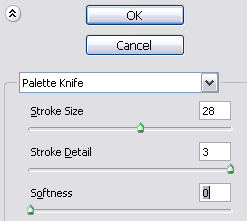
Now set your duplicated layer opacity to about 80% then merge together with “ctrl + e”
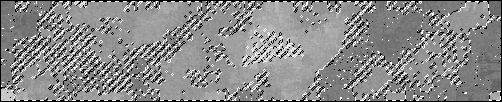
you should have something like this.

Now go to “select > color range” when the window opens you will see a black rectangle click on it, now click on it a couple of more times in different places, you will notice the image changes, click so you get something simlar to the image below, also change fuzziness to about 50.

This is how my image looks once i pressed ok.
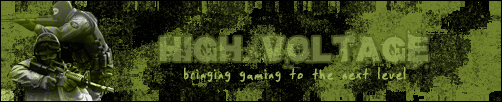
With your selection still selected from the color range, create a new layer and fill with the color black, then press “ctrl + D” to deselect, now select your background layer and press “ctrl + u” when the box opens put a “tick” in the colorize box and play with the sliders until you decide on a color, heres my finished result with some texted added.

Be Part Of The Community!
Become part of the hv-designs community.
Subscribe Via RSS or Follow Us On Twitter.


One Response to “Quick & Easy Grunge Tutorial”