Subscribe Via RSS

3268 Subscribers

Subscribe Via RSS
Subscribe Via Twitter

Followers

Subscribe Via Twitter
Creative 3D Layout

January 19th, 2010 in Photoshop Tutorials by Richard Carpenter

Creative 3D Layout

1 Star2 Stars3 Stars4 Stars5 Stars25 Votes, Rating: 4.68
Loading ... Loading ...
About The Author

About The Author: Richard Carpenter

Hi im Richard Carpenter im a freelance web and graphics designer from England. I am also a regular Blogger, Tutorial Writer, and owner of HV-Designs. You can follow me on twitter HERE. You may also view my portfolio HERE.


Richard Carpenter has written 331 posts.

Good evening ladies, gents, boys and girls. Welcome to another tutorial from hv-designs, today il be showing you how to make a creative 3D layout. The layout features a sleek navigation inspired by the mac and has a nice subtle look with subtle grey colors.

What We’ll Be Creating
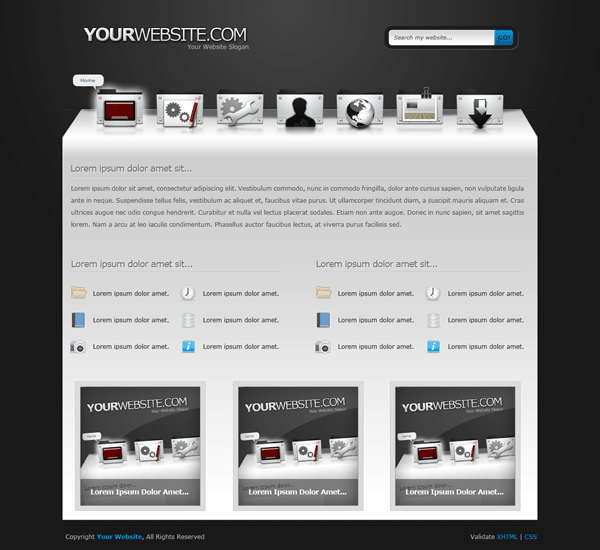
Creative 3D Layout

Let’s Begin

Create a new document “1200 pixels X 1200 pixels” with any color background. Set your foreground color to “#424241″ and background to “#191919″ then select the “Gradient Tool” with a “Radial Gradient”.
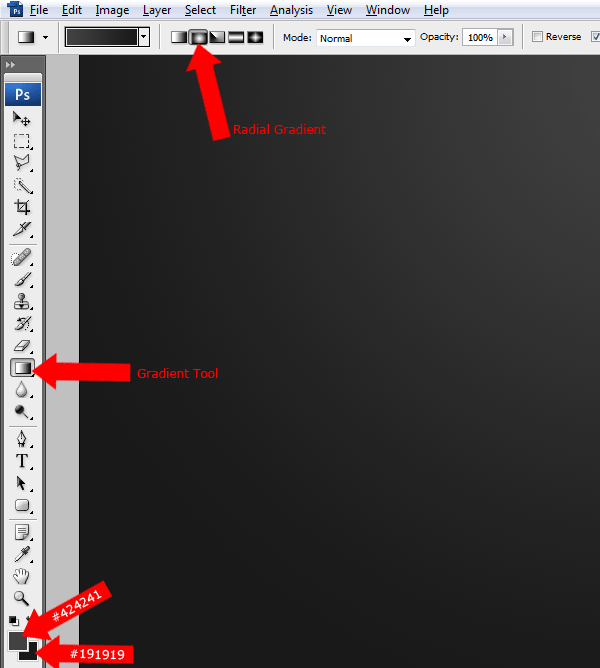
Creative 3D Layout

Drag the radial gradient from the middle of the canvas down to about half way down.
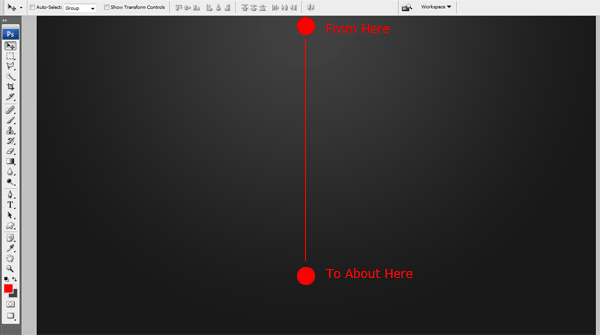
Creative 3D Layout

Creating The Website Title Text

Select the “Text Type Tool” and type out your website title and slogan, place your title and slogan in the top left side of the canas.

Creative 3D Layout

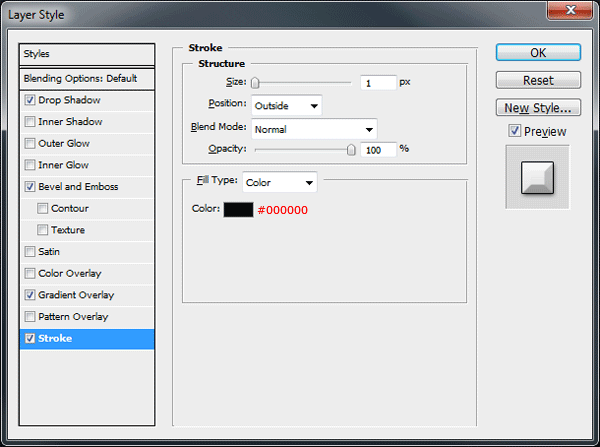
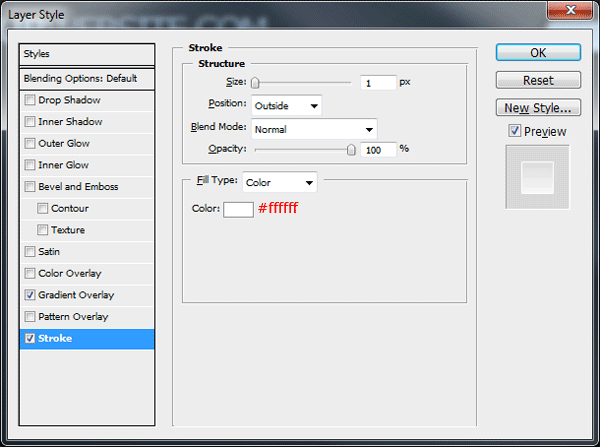
On your main title layer add the following layer styles.
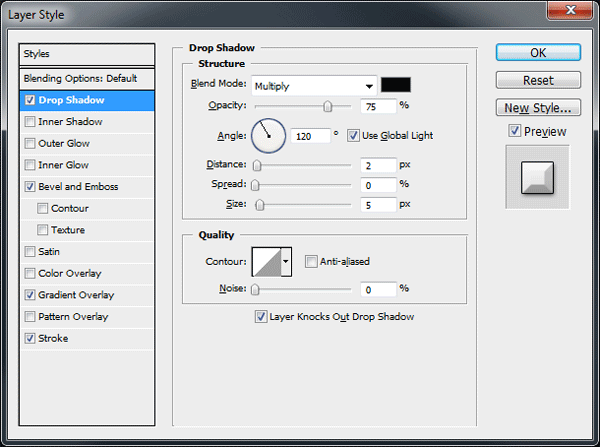
Creative 3D Layout

Creative 3D Layout

Creative 3D Layout

Creative 3D Layout

You should have something like this.

Creative 3D Layout

Creating The Search Box

Select the “Rounded Rrectangle Tool” with a radius of “15px”. Drag out a medium sized rectangle on the right side of the canvas.

Creative 3D Layout

Once you’ve created your rectangle add the following layer styles.

Creative 3D Layout

Creative 3D Layout

You should have something like this.

Creative 3D Layout

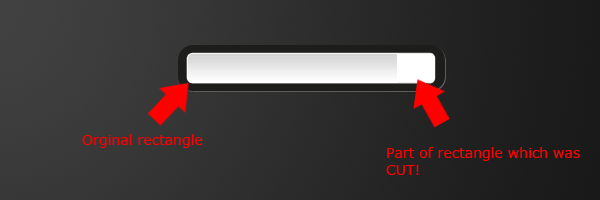
With the “Rounded Rectangle Tool” once more drag out a smaller rectangle inside the last rectangle you created. This time change the radius to “5 px”. Once you’ve create the inner rectangle “Cut & Paste” the right end of the rectangle for later use.
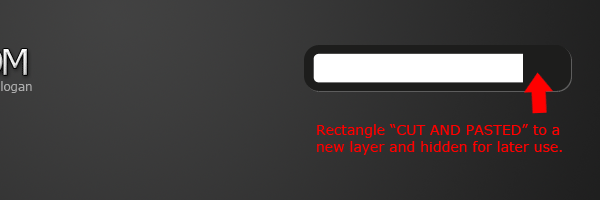
Creative 3D Layout

Now add the following layer styles to the inner rectangle.
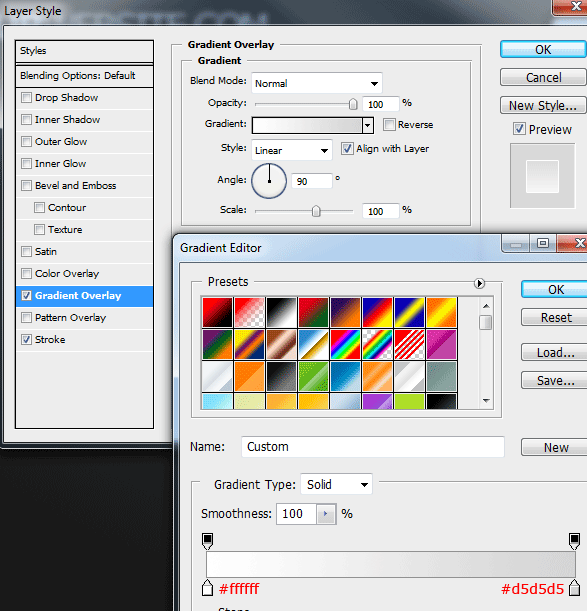
Creative 3D Layout

Creative 3D Layout

You should have something like this.

Creative 3D Layout

Un-hide the part of the rectangle that you cut earlier, if it isn’t already place it back into its orginal postion.
Creative 3D Layout

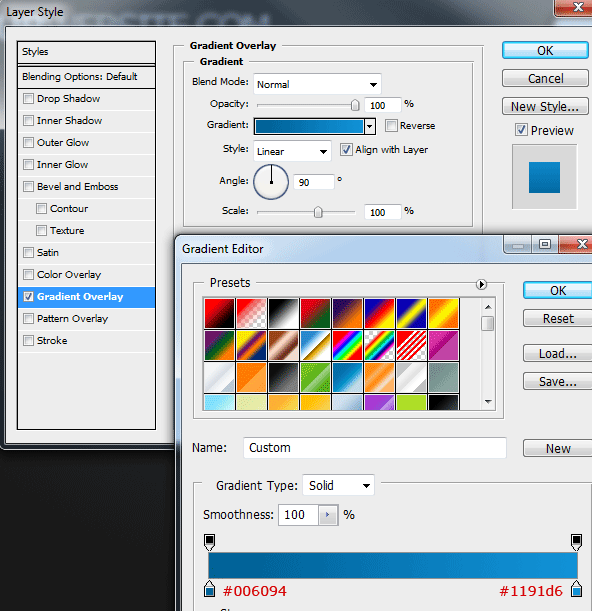
Now add a gradient overlay to the end of the rectangle in which we cut earlier.
Creative 3D Layout

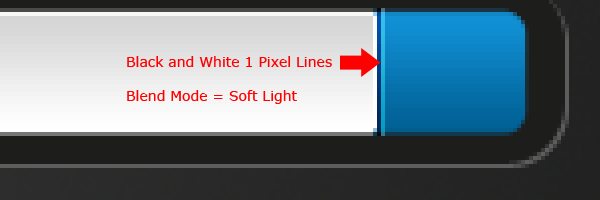
On the top of the blue button where it meets the search field (the white rectangle) add a two 1 pixel lines. The first line should be colored in black then the second in white. Once you’ve created the lines set the layer blend mode to “Soft Light”.
Creative 3D Layout

Finish off the search area by labelling your submit button and search field. You should have something like this.

Creative 3D Layout

Creating The 3D Navigation

About 100 pixels down from the search box and website title create two 1px lines on top of each other. Both lines should be 950px wide or as wide as your layout is intended. Fill the top line in black (#000000) and the bottom line in white (#ffffff). Set the layers blend mode to overlay.

Creative 3D Layout

Select the “Rectangular Marquee Tool” or the “Rectangle Tool” then create a rectangle the same width as the line we created in the previous step. Fill the rectangle with the color white then go to “Edit > Transform > Perspective”.

Creative 3D Layout

Drag the left top anchor point inwards until you have something like the image below. Also make sure the black and white 1 pixel lines are directly above the rectangle leaving no space at all between the two objects.

Creative 3D Layout

Once you’ve finished add a gradient overlay using the settings below.

Creative 3D Layout

Select the “Elliptical Marquee Tool” and drag out a big ellipse. The ellipse should cover just under half of the rectangle we recently created.

Creative 3D Layout

Fill the ellipse in black (#000000) then set opacity to “50%”. Load a selection around your rectangle, inverse the selection then select the ellipse layer and hit delete. You should have something like this.

Creative 3D Layout

Adding The Navigation Icons

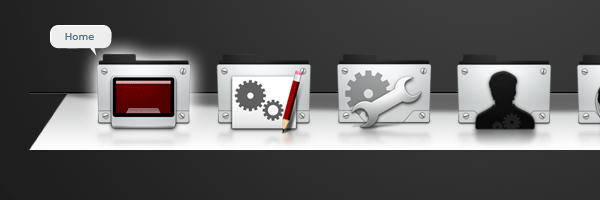
For the navigation i used some folder icons by “Scott Copeland“, i chose my prefered icons and placed them on the navigation area. On the first icon i added a subtle outer glow to indicate its hover state.

Creative 3D Layout

Duplicate each icon then merge all the duplicated icon layers into one layer single layer. Drag the duplicated layer underneath all the icon layers then flip the icons vertically “Edit > Transform > Flip Vertically”. Finally blur the merged icons by 2px by going to “Filter > Blur > Guassian Blur”.

Creative 3D Layout

Add a layer mask to the duplicate icons layer, then drag a linear gradient from the bottom of the icons to about half way up. Your only going for a nice subtle look, you should have something like this.

Creative 3D Layout

To finish the navigation off simply label your first icon, or the one which has the hover state added. Ive chosed for a small speech bubble, if i were to code this id use a jquery tool tip script for the navigation hovers.
Creative 3D Layout

Creating The Content Area

Using the “Rectangle Tool” or the “Rectangular Marquee Tool” create a big rectangle for your content area. The rectangle should be the same width as the bottom of the navigation and should also directly underneath leaving no space between the two objects.
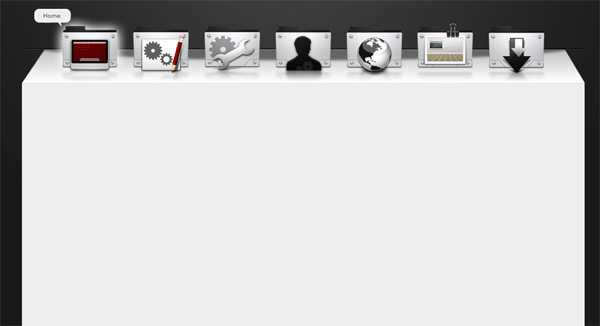
Creative 3D Layout

Now add a gradient overylay to your content rectangle using the settings below.

Creative 3D Layout

You should now have something like this.

Creative 3D Layout

Now its time to add some dummy content, i havent exactly gone into perfecting the content for the layout so if you think the content area looks rubbish “I Agree With You”.

For the content area i chose some indented style titles and simple long paragraphs. Underneath each title i added a simple seperator using two 1px lines just like on the navigation bar. Finally ive added a simple list with some icons and a image gallery using 3 big thumbnails.
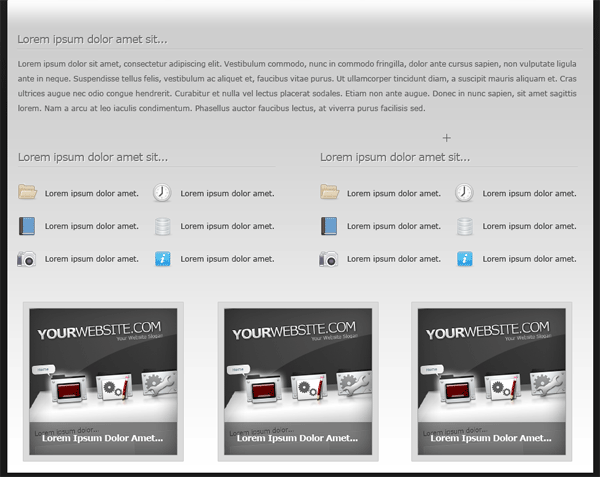
Creative 3D Layout

Obviously you can take more time to perfect your content area, mines purley for example.

Creating Our Footer

We finish off the layout by adding a simple text style footer, above the footer text i added a divider. The divider was created by using two 1px lines on top of each other, one colored black and the other white. Just like our navigation, the layer blend mode is then set to overlay.

Creative 3D Layout

All Done

Congratulations you’ve completed the tutorial you should now have something like this.

Creative 3D Layout

Hope you enjoyed this tutorial, dont forget to promote this tutorial by submitting to Digg and maybe Re-Tweeting on twitter. Thanks.

Be Part Of The Community!

Become part of the hv-designs community.

Subscribe Via RSS or Follow Us On Twitter.

Subscribe Via RSS Follow Us On Twitter

53 Responses to “Creative 3D Layout”

  1. Luis Gomes says:

    Really nice :)

  2. Akkis says:

    Nice tutorial! It is amazing! Thank you for your ideas! :)

  3. iMezied says:

    great idea
    and great design

    thanks Richard ^_^

  4. Elijah says:

    I like the simplicity and idea. Looking forward to new tuts.
    Richard, I’d like to ask you a question. Can I translate your tutorials in Russian and post them on sites with a reference to you?
    And can I freely use the result as the design for my own sites?

  5. unknown says:

    ohh, it’s just another amazing tut.

    thanx man

  6. Jamie Bell says:

    Very nice looking design mate.

  7. Marius says:

    Great tutorial! Nifty idea, seen this on other design but this is one of those who looks the best! Keep the good work up! :-D

  8. Exia says:

    All hail Richard. To be continue… PSD->XHTML i think it’s been preparing. this is really a wonderful inspiration. once again Thank you.

  9. upix says:

    a very interesting layout. I can’t wait to make it

  10. squab says:

    I have been waiting for the next tut for weeks now… wow! Richard great man thank you!
    i follow your tuts Religiously. I just started this year to be serious about photoshop even though i have been designing for years, i have found following your tips makes me more stronger in cs3. I have difficulty with coding though, but i can’t wait for this coding. if i may ask though, your advise please. where to start so that i understand css or html?
    thanks
    squab – South Africa

  11. Asker says:

    Thanks for this nice tutorial.
    :-)

  12. SkullTraill says:

    Wow. I’m certainly gonna do smth similar for my portfolio coming soon.

  13. SkullTraill says:

    @ Elijah: You can translate, but you have to maintain a link of credit to this site.

  14. Thank for all your comments, much appreciated

  15. cristian says:

    Hi Richard. You know this job. I realy like this one.

  16. Enrique says:

    Hello, I’m from Spain and on my site I also do this kind of templates and as a fellow like me to tell you that you do a great job.

    If you want to invite you to visit and told me …

    Sorry my bad English

  17. Botarab says:

    thank you for this tut Richard

  18. Harold J. says:

    A real challenge for me as graphic artist, gonna try it as soon as I finish with a previous tut.

  19. YJW says:

    Thank U very much!

  20. krike says:

    Great tutorial :) currently following and it looks good till now :D I have one question, the “go!” in the search bar and the “lorem ipsum” title in the body content, how do you make such text effect?

  21. Mr.DH says:

    Honestly, I am a fan of Pedrosk

    I hope to continue on the path of creativity.

  22. frozen_flame says:

    your ideas are great man…
    i really learn a lot from your designs…
    looking forward for your next tutorial…
    :)

  23. tr79 says:

    Again nothing new there, still the same style and effects like others on this site. It would be take something new

  24. ktl says:

    great tutorial mr! i like it

  25. Alex says:

    @squab –

    There are literally thousands of resources on the internet to learn CSS and HTML. I would recommend starting off at W3C with the HTML tutorial: http://w3schools.com/html/default.asp
    There are many other tutorials on that site as well. Good luck!!

  26. D Poland says:

    Man u are the best. My idol !! :).
    Tell me from where u take so great idea ?

    With all kind regards
    D Poland

  27. Maxi says:

    Very good tut Dud.

  28. Dee says:

    Awesome layout! I am new to the whole web design concept. So I was just wondering, how do you bring this into Dreamweaver and customize the top navigation to do a rollover and the search bar. . . . . .is it slicing the page? Or does anyone know if there is a good tutorial on making this jpeg into an interactive site? Thanks!!

  29. ???? ????? says:

    Very cool

    Good

    Thank you

  30. Rameexgfx says:

    Easy & Cool thanks for share……….

  31. What a refreshing design for a web page, full of inspiration

  32. Great tutorial for a great design. Thanks.

  33. Selina says:

    relly nice !

  34. bz says:

    thank you all tuts

  35. Yan says:

    Nice one really. Keep going ;)

  36. Davide Scalzo says:

    Thank you for sharing! fantastic layout, modern and fresh. Got a lot of inspiration from it!

  37. Gkcn says:

    Awesome tutorial,humble author.

    Many Thanks!

    Greetings

  38. Rehan says:

    Simple but impressive.

    Cheers

  39. Damien says:

    Great tutorial. here is some feedback. I’ve noticed that often times designers forget that Photoshop is quite complex in a simple way. IT will vastly help people if when you say “Cut and Paste” you actually show HOW it is done as opposed to just expecting the learner to know how to do it. Or if you say “draw a line” you show how YOU draw a line. One of the most important part of a tutorial that designers leave out is actually how to use the tools. Specifically with tasks like cutting and pasting, drawing lines, using selection tool etc.

    Just wanted to give some feedback. I couldnt complete this tutorial because I felt a lot of steps were missing. Specifically how to use the tools to accomplish the tasks – Cheers

    Cheers

  40. ?????? says:

    Gooooooooooood!

  41. Ahmed says:

    great design

    thanks Richard ^_^

  42. Elscorto says:

    Very nice, thanks!

  43. Impressive, Effective and crip look. It’s rally takes a artistic thinking more than anything else to create effests lick such.

  44. awsome, nice tutorial. :)

    mac OS design

  45. cristian pescao says:

    me cago en vuestra puta madre mis tutoriales son una mierda pero ls vuestros dan gana d vomita soy cristian y m creo diseñador

  46. Rock says:

    You are a genius thanks very nice tutorial.

Leave a Reply