Your ads will be inserted here by
AdSense Now!.
Please go to the plugin admin page to paste your ad code.
Hello everybody, today were going to be creating a colorful image icon from scratch, the icon features a colorful design in a shiny metal like border the icon also used a bokeh effect.
Setting Up The Canvas & Background
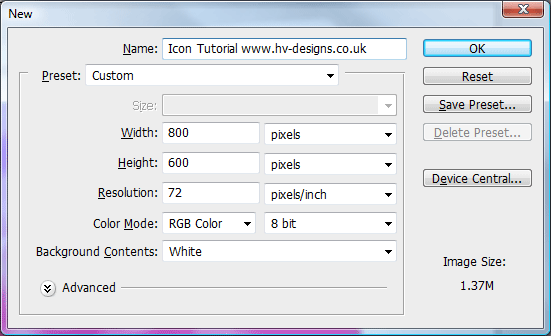
Create a new document 800×600 pixels, you can use a bigger canvas if you wish to but for the purpose of this tutorial we’ll be using those dimensions.
For the background ive just added a simple gradient with a sun burst effect, just something better than boring white.

Creating The Icon Surround
Select the rounded rectangle tool with a radius of 15px, change the type to “shape layers”.
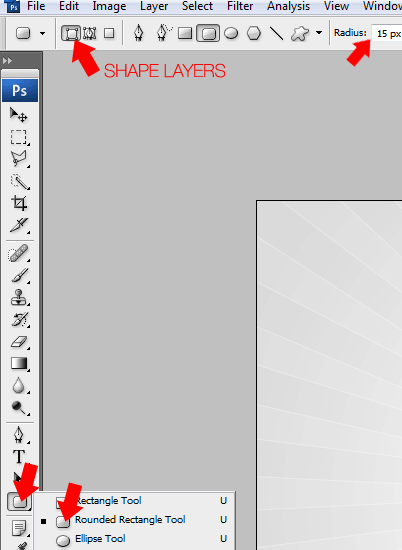
Using shape layers will let you resize your icon without loss of quality. Draw out your icon surround in the center of the canvas, make the surround fairly big.

Add these layer styles to the surround.
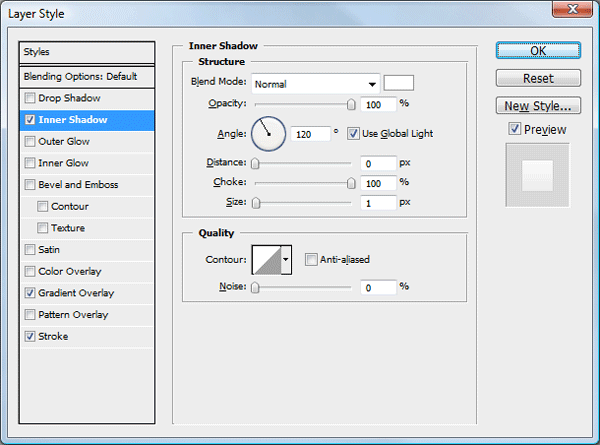
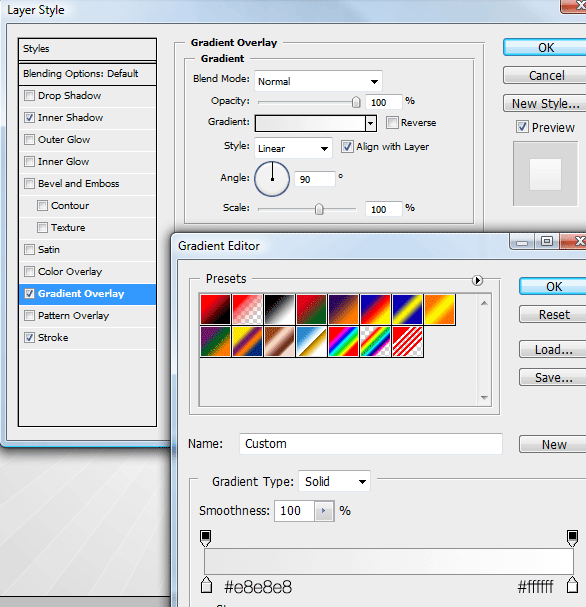
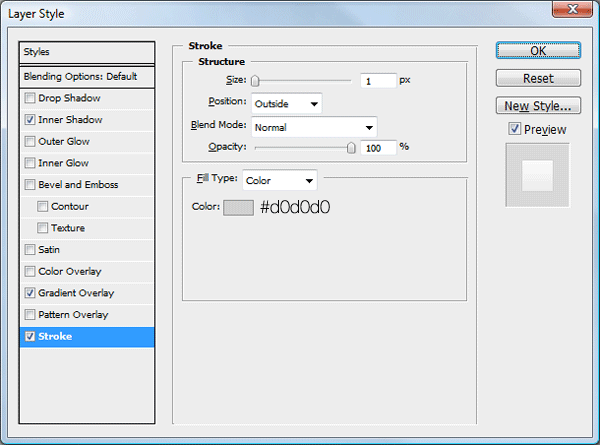
You should have something like this.

Creating The Inside
Select the rectangle tool again with the type set to “shape layers”.
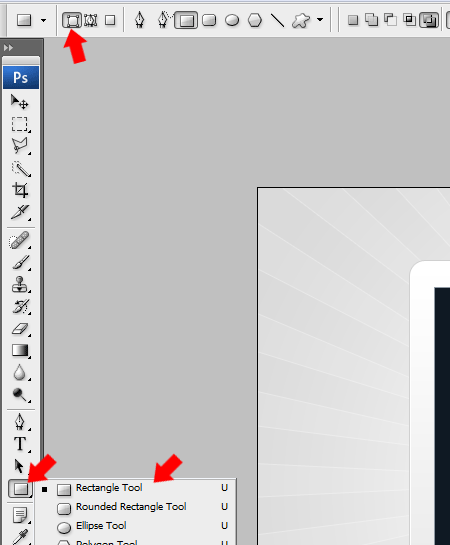
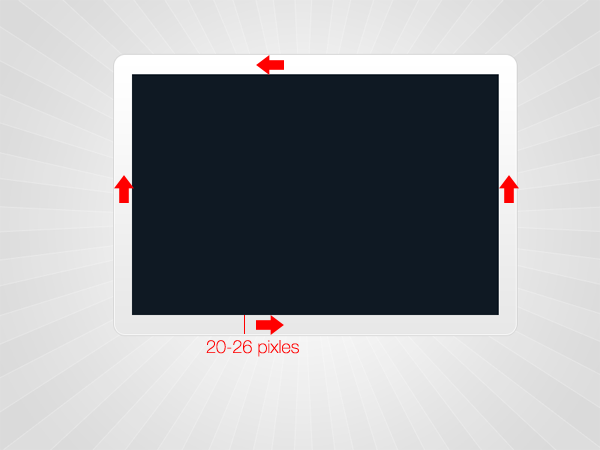
Draw out a rectangle inside the surround, leave about 20 – 26 pixels all the way around the surround.
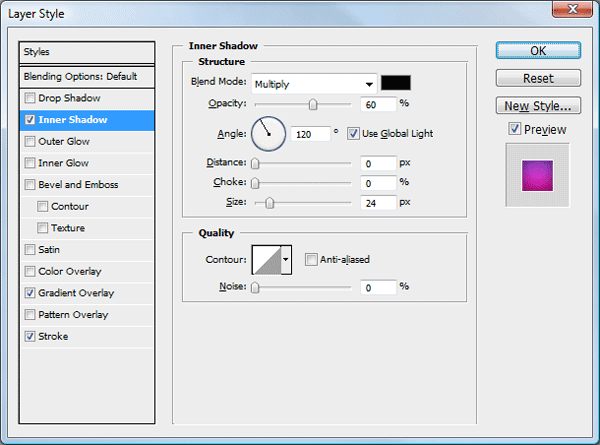
Add these layer styles to the rectangle you just created.
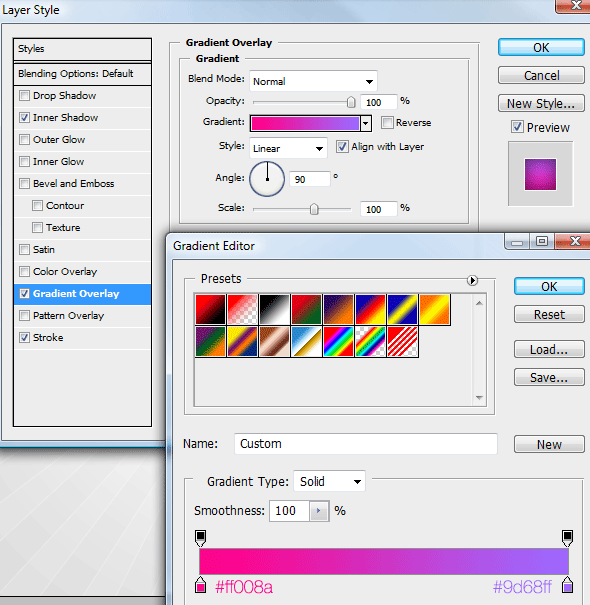
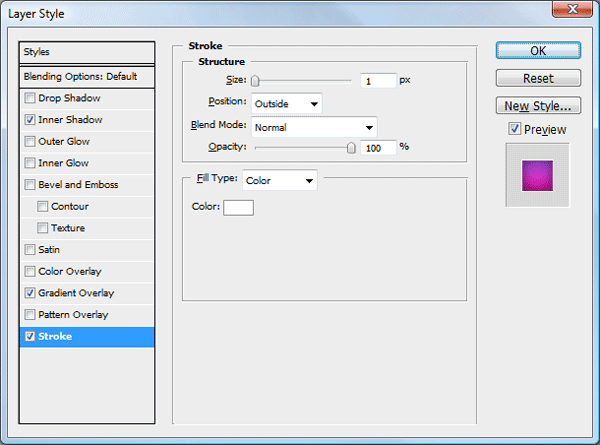
You should have something like this.

Creating The Bokeh Effect
Create a new document 600 x 600 pixels with a transparent background. Select the elliptical marquee tool and create a circle as big as the canvas, fill the circle with black.
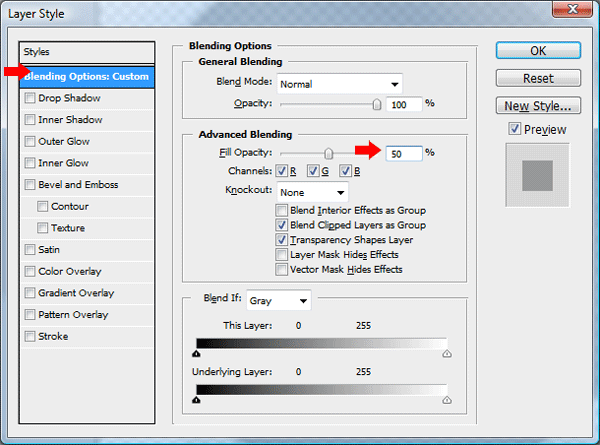
Once you’ve filled the circle change the fill opacity to 50%.
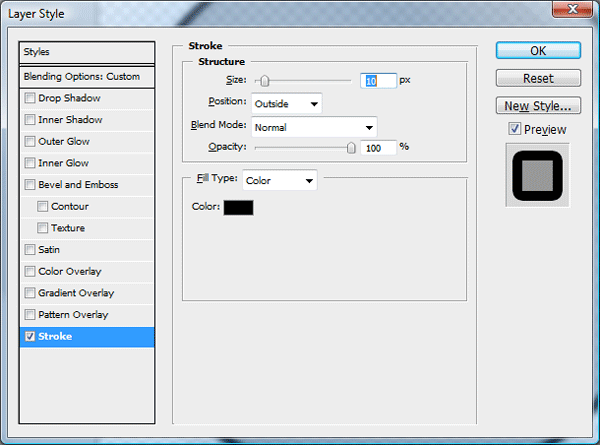
Now add a stroke using the settings below.
Your ads will be inserted here by
AdSense Now!.
Please go to the plugin admin page to paste your ad code.
Once you’ve added the stroke go to “edit > define brush preset”, save your brush as “bokeh”. Head back over to your layout and select the brush tool, find and select your brush from the brush menu.
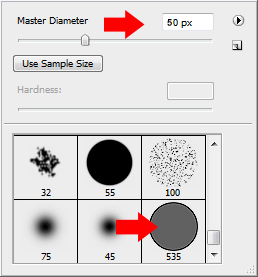
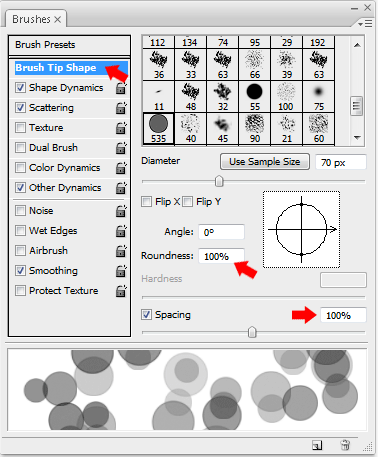
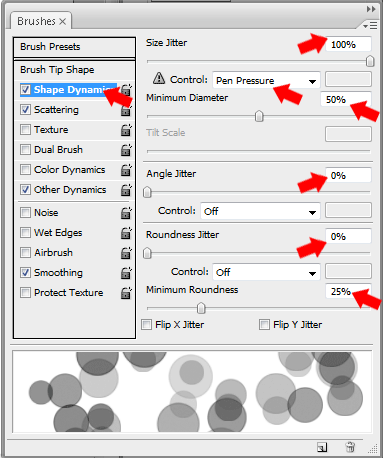
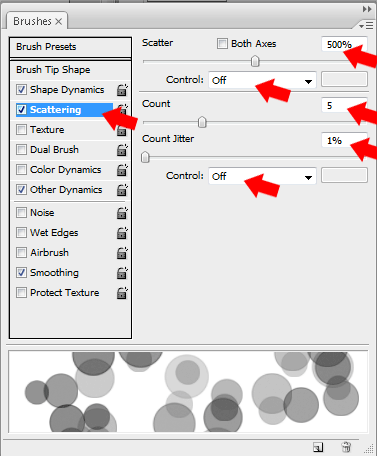
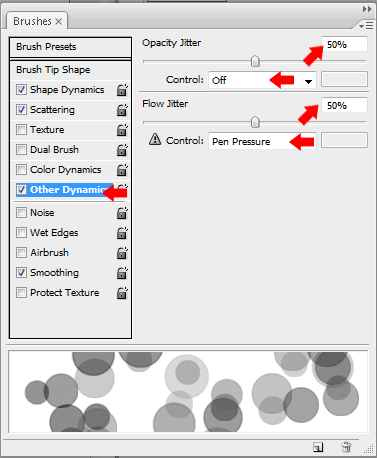
Open up the brush settings window by press F5 or by going to “window > brushes”, once opened add the following settings.
Adding The Bokeh Effect
Make sure you still have the bokeh brush selected, randomly brush over the inner rectangle, try keeping the circles inside the inner rectangle, if they happen to go over on the surrounding rectangle inverse the selection and hit the delete key. Once you’ve brushed a few circles blur them by 3 pixels using the guassian. (filter > blur > guassian blur).

Repeat the process again on a new layer this time set the layer opacity to 50% then add a outer-glow using the settings below.
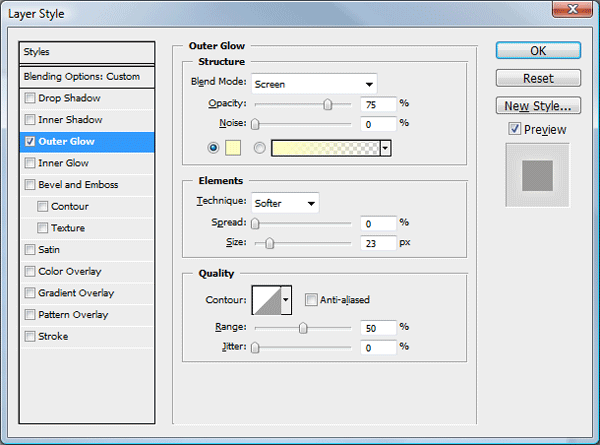
You should have something like this.

Repeat the process again including the outer-glow only this time set the layer opacity to 75%, your final result should be something like this.

Creating The Inner Rectangle Shine
Select the pen tool and make a path like the image below.
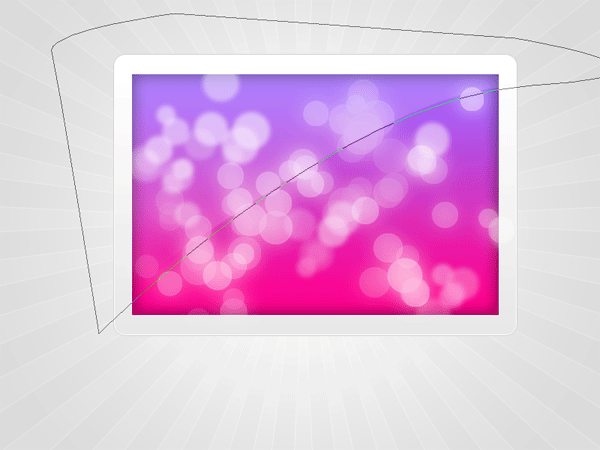
Once you’ve made the path right click and go to “fill path”, fill the path/selection with the color white. Make sure you have your layer selected then ctrl + click on your inner rectangle, go to “select > inverse” and hit the delete key.

Now you have your shine add a layer mask to the layer, reset your foreground and background colors then select the gradient tool with a linear gradient. Drag the linear gradient from the bottom of the shine upwards.

Creating The Shadow
Select the rectangular marquee tool and create a black rectangle towards the bottom of the surrounding rectangle.
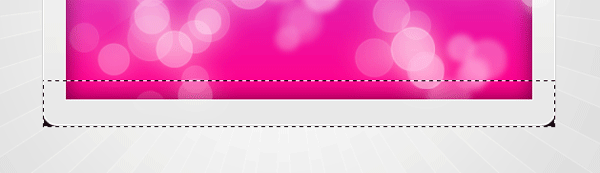
Blur the rectangle by 6 pixels using the guassian blur (filter > blur > guassian blur).

Set the shadow layers opacity to 50% then cut off the left and right ends using your favorite cutting tool.

Creating The Second Icon
Select ALL layers apart from the background layer, merge all duplicated layers into one layer then place the layer behind the first icon. Press CTRL + T to free transform the duplicated layer, slightly rotate the 2nd icon behind the first icon.

The Finished Product
You should now have something like this.
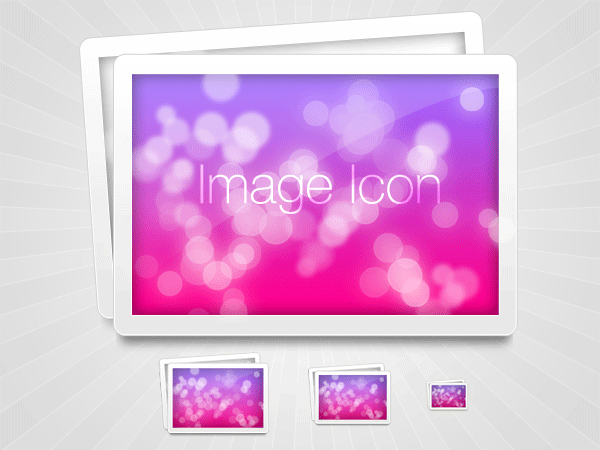
I look forward to your comments.
License and Attribution
The PSD file is licensed under the Creative Commons license and can be used for personal purposes ONLY. No attribution is needed but it is always appreciated.
Your ads will be inserted here by
AdSense Now!.
Please go to the plugin admin page to paste your ad code.