Subscribe Via RSS

3174 Subscribers

Subscribe Via RSS
Subscribe Via Twitter

Followers

Subscribe Via Twitter
Sliding Jquery Menu

February 17th, 2009 in JQuery Tutorials by Richard Carpenter

Sliding Jquery Menu

1 Star2 Stars3 Stars4 Stars5 Stars93 Votes, Rating: 4.35
Loading ... Loading ...
About The Author

About The Author: Richard Carpenter

Hi im Richard Carpenter im a freelance web and graphics designer from England. I am also a regular Blogger, Tutorial Writer, and owner of HV-Designs. You can follow me on twitter HERE. You may also view my portfolio HERE.


Richard Carpenter has written 322 posts.

Hi there welcome to another tutorial, in this tutorial il show you how to create a sliding menu button using jquery. You can see the effect in action over on the PSDtuts webpage in the top right hand corner.

Oh yes and before i forget you can download the source files for free using the button above.

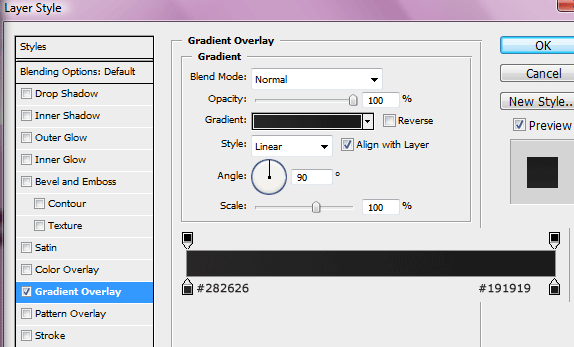
When the button is clicked it rolls out a box full of links, when the button is clicked again it rolls back in. This can be done using jquery and in this tutorial il show you how to do it. Right lets get started, firstly lets get our button done out the way so we can then focus on the code. Open up photoshop and create a new document with your desired size of button, your button can be any size your wish. Im using a size of 182 x 32 pixels, double click your background layer and add a simple gradient overlay.
On the right hand side of your button add a little white arrow and a vertical divider. The divide consists of two colors #302f2f & #252525.

On the left side add your little icon and some text, i dont think i need to go into too much detail on the button design, as you’ll make your own to suit your own site. Heres how mine looks. (save your button image into your images folder)

Now for the exciting bit open up notepad and save a blank notepad document as styles.css, save the file into a folder called sliding menu on your desktop. Once saved close notepad, open up your folder “sliding menu” create two new folders one called js and another called images. Goto the main jquery webpage and download the jquery libary “jquery-1.3.1.min.js” rename the file to just “jquery” and stick it into the folder js. Open up dreamweaver and create a new HTML file save the file straight away inside your sliding menu folder. (filename for the HTML file doesnt matter call it what you like, sliding_menu.html might be a good idea.) Now your in dreamweaver click the code view tab.

The most import thing we need to do first is reference our javascript and css files we do this by typing this chunk of code within the “HEAD TAGS”.

<link href="style.css" rel="stylesheet" type="text/css" />
<script type="text/javascript" src="js/jquery.js"></script>
<script type="text/javascript" src="js/slider.js"></script>

You will notice there are 3 files we have referenced styles.css, jquery.js and a third slider.js (but i havent got a slider.js file i hear you cry.) We need to create that now, open up notepad and save a blank notepad document as slider.js, save it inside your js folder. Open up your slider.js file inside dreamweaver and type out the code below.

$(document).ready(function () {
    $('img.menu_class').click(function () {
	$('ul.the_menu').slideToggle('medium');
    });
});

Let me explain the code above the 1st line means when the document is loaded run the function in our case the sliding menu. The next line means once an image with a class of menu_class is clicked the menu will slide which brings me down to line 3. The menu will toggle down at a medium speed. You can change the speed if you wish from slow, medium or fast. The second and third line are important as they hold key elements refering to our CSS file which is img.menu_class and ul.the_menu. We havent wrote these yet but will do when we begin to write out our menu. Head over to your HTML in the code view so we can begin to write out our menu.

<img src="images/button.png" width="184" height="32" class="menu_class" />
<ul class="the_menu">
<li><a href="#">A Website #1</a></li>
<li><a href="#">A Website #2</a></li>
<li><a href="#">A Link #1</a></li>
<li><a href="#">A Link #2</a></li>
<li><a href="#">A Website #3</a></li>
<li><a href="#">A Website #4</a></li>
<li><a href="#">A Link #3</a></li>
<li><a href="#">A Link #4</a></li>
</ul>

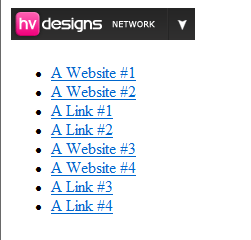
The first bit of code you see is a simple image which is our button, we specify the width and height of our button we also give it a class. The class will be the images unique anchor point for the js file which we have already wrote. The class also lets us apply any styles via css using the class .menu_class. After that we have a simple unordered list. If we take alook at our menu in our browser this is how it looks.
Open up your CSS file in dreamweaver. Lets set a few style for the main part of our document.

body {
	font-family:Arial, Helvetica, sans-serif;
	font-size:12px;
	background-color: #333333;
}

Just some simple text and background styling is needed, set your font family and desired font size, ive also changed the background from white to a darkish grey color. The next bit of styling were going to add is for the ordered and unordered lists, were also going to apply a border to our button image, you may do your border in photoshop on the actual image but i find it best to add it using CSS as changing abit of code is easier then opening up photoshop to change it.

ul, li {
	margin:0;
	padding:0;
	list-style:none;
}

.menu_class {
	border:1px solid #1c1c1c;
}

The next bit of css styling refers to the menu that drops down once the button is clicked.

.the_menu {
	display:none;
	width:300px;
	border: 1px solid #1c1c1c;
}

In these styles you can change the width of the open menu, mine has a width of 300px but this can be what ever you like. Ive also given it a 1px border the same as our button. The next bit of styling refers to the background color of our rolled out navigation and also the text colors, sizes and hovers.

.the_menu li {
	background-color: #302f2f;
}

.the_menu li a {
	color:#FFFFFF;
	text-decoration:none;
	padding:10px;
	display:block;
}

.the_menu li a:hover {
	padding:10px;
	font-weight:bold;
	color: #F00880;
}

The_menu li is the color of the background when the navigation is rolled out, the text in the navigation links wont have any line underneath them as we have used text-decoration:none, we have also spaced out our links by adding 10px paddinig all the way around our links we also want to display the links in a block. The hover styles are pretty simple, padding the same as the last style, font weight bold = bold text and the color changed to a pinkish color. Thats it for the styles you menu should be ready to test. Heres mine.

Just a quick point on positioning, dont use div align to center or right align your button as the rollout will not be aligned up properly, if you want to align your menu button properly wrap it in its own div and position div how you see fit.

See what you can come up with, maybe add some icons to your list objects. Thanks for reading, dont forget to subscribe VIA rss and twitter.

Be Part Of The Community!

Become part of the hv-designs community.

Subscribe Via RSS or Follow Us On Twitter.

Subscribe Via RSS Follow Us On Twitter

171 Responses to “Sliding Jquery Menu”

  1. Abraham says:

    Great tut, one quick question. My image (button) is disunite from my drop down menu; there is a gap in between them. Am using firefox 3.0.6 i went over my code like 3 times and is exactly the same as yours.

    why do you think am having that problem????

    Great tutorial once again, keep up the good work :P

  2. DDamir says:

    Nice.Thank You.

  3. Murray says:

    Excellent!

    I’m getting fairly proficient with HTML and CSS, and now moving into JQuery, this is great.

  4. Predator7 says:

    Wow, nice one, and bookmarked. Great tutorial.

  5. ADMIN says:

    @ABRAHAM
    in the style sheet on the “.menu_class”
    add
    margin-bottom: -4px;

  6. Azhar says:

    very good
    thanks

  7. Abraham says:

    I didn’t think of adding a negative margin – actually i won’t be adding the -negative margin to the “.menu_class”, but to the “.the_menu”.

    Once again great site!

  8. Nick says:

    ITs great… i sugguest u try fix thats way when mouse is out of menu it should disppareded by theirself without clicking button to close button… it will be awesome if u fixed it to that way..

  9. why do you not make any preview on your website?
    so not everyone has to download the sliding menu, but can try it on your website ;)

    but very cool tutorial

  10. ADMIN says:

    i have made a preview. read the button at the bottom of the tutorial it SAYS “LAUNCH DEMO”

  11. Matt says:

    It’s great tutorial, but i have got a little problem. I want to make 3 buttons on the site, but when i click on the first one, all three rolls down..

    How can i solve it? :)

  12. Matt says:

    Ok, i’ve solved it :) now i’m trying to put this menu on the top, becouse is under my divs…

  13. lovely thank you

  14. hai says:

    –EDITED BY ADMIN–

    dont use foul language.

  15. SteeL says:

    Very nice, i want to try this one, right now. I go at working!

  16. Ryan says:

    I have seen this on numerous websites and been curious as to how it’s done. Very nice tutorial. Thanks alot!

  17. D'Artagan says:

    How would you go about putting multiple buttons on a page

  18. Danny says:

    Great!
    I’ve had a fiddle and got 3 seperate menus up and running on the same line.
    However, I cannot get them to “float” over the content like the psdtuts example.
    I’ve tried adding a z-index:9999 to the .menu_class – no joy.
    How do Ido this, please? (anyone)
    :-)

  19. MegaPHASE says:

    Thank you! this will be very helpful! One question, where did you get the plugin that displays formatted and highlighted code?

  20. michael says:

    @MegaPHASE

    This are Screenshots from Adobe’s Dreamweaver

  21. Excellent :)

  22. Kevin says:

    @Danny, you dont put the z-index on the menu class but on the absolute positioning.

    exampple: {position: absolute; left: 0px; top: 222px; width: 800px; height: 546px; z-index: -5;}

    And umm… I have a question, Is there a way for the menu to “un-slide” when I put my mouse away?

  23. Mark says:

    Yeah love it, and want to use it but please can you tell us how to close the dropdown when hover off the menu :)

  24. @Michael
    I wasn’t referring to the screen shots, I was referring to the actual code examples. I found the plugin though.

  25. oclement says:

    So how can I have multiple buttons like this one on one page ?

  26. Nick says:

    On the psdtuts site – when the menu is open – it is on top of the content. When i put some content below the menu in the downloaded sample file – the menu didn’t push the content down, but the content was still visible.

    On my own demo, the menu pushes all my content down when it opens.

    Any idea how to fix this so that it functions like the psdtuts menu? Great tutorial!

  27. Jim Davis says:

    It is possible to combine the jQuery hover event with the animate effect to get the desired results. See this demo:
    http://jimdavis.org/jqTest/menutest.html
    Requires jQuery 1.3.x.

  28. Martin says:

    yet again another excelletn tut. Can this sliding menu be import/used within iWeb?

  29. Lee says:

    Ola,

    I have got a small problem with this tutorial aswell. I managed to get a couple of buttons next to eachother (although I doubt I did it in the most elegant way) but now the drop-down list seems to shift it’s position 1px to the right when completely rolled-out. Anyona any idea to fix this?

    It seems to be a problem with the border…

    http://keyk.nl/playground/knop.htm

    Grt.

  30. A nice touch would be to flip the arrow vertically when you drop down the menu. Also when you hover off the menu for a certain period of time it should fade out.

    Thanks great tutorial – would love to see those additions.

    @Prydie

  31. Ricardo says:

    What a nice article! Thanks for sharing.

    I would like to suggest one thing though: use the cursor hand when hovering over the list. I mean, we might know there’s a menu there, but trust me, not everybody gets it if the hand doesn’t show up.

    Adding to your css the cursor:pointer; to the .menu_class and that should do the trick.

    :D

  32. seo says:

    perfect :)

  33. This is neat, a nice example of jQuery being used for a simple purpose, and I like the simple styling you’ve put on the menu on your demo. I might suggest though that you could add ‘cursor:pointer’ into the declaration of menu_class, so that the user can understand to click on the unexpanded element in order to roll out the menu (and then to hide it again). That way you can avoid having to make this functionality completely clear – as you have done by adding ‘Click me’ onto your ‘Categories’ to the right of your site’s navigation.

  34. Awesome

  35. Razor says:

    Nice tutorial dude… Just what I was looking for. However, how can I convert this into a text link with a dropdown menu instead of it being the image? I have a very cunning plan in my mind :P Overall, lovely tutorial mate. Thanks for this!

  36. Razor says:

    Sorry for this double post but here’s my site: http://www.razorproductionz.co.nr I am working on the Search button and Login button which I want to be working as this sliding menu which will hold text fields etc. Thanks.

  37. Serkan says:

    Excellent!
    Thank You.

  38. Albert Pak says:

    Very nicely done :)

  39. Ethan says:

    For those wanting the hover effect, here’s what I used:

    $(document).ready(function () {
    $(‘img.menu_class’).mouseover(function () {
    $(‘ul.the_menu’).slideToggle(’slow’);
    });
    $(‘img.menu_class’) .mouseout (function() {
    $(‘ul.the_menu’).slideToggle(‘medium’);
    });
    });

  40. Thanks For This Nice Tutorial

  41. DWL says:

    Smooth love it!

    @Jim Davis – Nice job on the multiple hover drop downs.

  42. daniel says:

    brilliant

  43. Jeremy says:

    Hey,

    I’ve added the code to my website and the menu is hiding under the div tags, anyway that i can make it appear above the div tags?

    Thanks.

  44. You need to change the “Z-INDEX” in your style sheet, if its not there then you need to add it to the menu.

    try looking it up in google ;)

  45. Jeremy says:

    thanks for the information about Z-INDEX…you really know what you’re talking about.

  46. Ezequiel says:

    script for mouse hover

    $(document).ready(function () {
    $(‘img.menu_class’).mouseover(function () {
    $(‘ul.the_menu’).slideDown(‘medium’);
    }).mouseout(function () {
    $(‘ul.the_menu’).slideUp(‘medium’);
    });
    });

  47. Ezequiel says:

    Here the fix for ie6

    Replace with:

    #button {
    height: 32px;
    width: 184px;
    margin: auto;
    position:relative;
    }

    .the_menu {
    display:none;
    width:300px;
    border: 1px solid #1c1c1c;
    position:absolute;
    top:33px;
    left:0;
    }

    .the_menu li {
    background-color: #302f2f;
    display:block;
    float:left;
    width:100%;
    }

  48. kapil says:

    great tutorial…can anyone pls tell me how to integrate this sliding menu with joomla 1.5…??? im not sure if jquery works with joomla properly…

  49. @KAPIL:

    sorry ive never used joomla.

  50. Sarah says:

    Great tutorial, thanks a lot!
    I’m new at Jquery and can’t figure out how to have several of these menus next to each other, without all of them opening when I click just one. Could someone please point me in the right direction?

  51. Sarah says:

    I figured it out. I’m a idiot :)
    Again, thanks for a really good tutorial

  52. Andrew says:

    just what I was looking for. Thanks…

  53. onder says:

    i have got a little problem. I want to make 5 buttons on the site, but when i click on the first one, all three rolls down..

    can anyone help me to fix it?
    i guess it’s very easy but sometimes i can’t see:)

  54. Claude says:

    Hi onder,
    It is easy as you says.
    Just add diffrent ids for : class=”the_menu” class=”menu_class” and call them in the js/slider.js

    i added #corporateIMG id and #corporateUL

    $(document).ready(function () {
    $(‘#corporateIMG’).click(function () {
    $(‘#corporateUL’).slideToggle(‘medium’);
    });

    $(‘#businessIMG’).click(function () {
    $(‘#businessUL’).slideToggle(‘medium’);
    });

    $(‘#healthIMG’).click(function () {
    $(‘#healthUL’).slideToggle(‘medium’);
    });

    $(‘#qualityIMG’).click(function () {
    $(‘#qualityUL’).slideToggle(‘medium’);
    });

    });

  55. ravi dass says:

    hi every one …this is nice site …

  56. Phil says:

    @Claude & Onder

    You could also roll this into one function that can be called again and again to save writing the same code over and over. This worked well for me in FF, Chrome and IE8.

    I used the following event on each button and named the function ‘rollOut’. This sends the elements class as specified within the parenthesis.

    onmousedown=”rollOut(‘ul.the_menu’);”

    The function is as below:

    function rollOut(list){
    $(document).ready(function(){
    $(list).slideToggle(‘medium’);
    });
    };

    Im fairly new to JS and JQuery so if there are any pros out there who think I have it wrong, please let me know of a better way to do it.

  57. JOS3 says:

    Hi i have a problem, this slinding menu doesn’t work on IE8, you can download the source when you can see that.
    I realise a sit with a vertical sliding menu : http://jean-zay.ovh.org/lolilol/

    I have 9 buttons I found how to place all of them(i repeat the js and the css whith other name class), but on IE8 the sliding menu does not appear. HOw can fix it?
    And my rollover doesn’t work on IE…

    (Sorry for my english I’m french)

  58. Melissa says:

    I am trying to get the hover effect to work and for some reason I cannot get the sub menu to stay expanded so that the sub item can be clicked on as soon as the mouse moves away the menu scrolls up? Is anyone else running into this or has anyone already fixed this?

    Thanks :-)

  59. Patrik Nyström says:

    Great tutorial man, even I understood it.
    Only problem is, I ain’t that familiar with Jquery so I don’t know the comand I’m looking for but.
    I use the original script and I’ve added more buttons and every button opens their own menu.
    But when if I click on all of them, everyone is open. I want just the posibility to have ONE open, and when you click the next button it closes the first and opens the second.
    Is that possible, with out being a leet haxxor? xD

  60. ben says:

    cheers mr carpenter

  61. Neelam says:

    Hey… Gr8.. But not working properly in IE.

  62. Emadz says:

    Awesome!…i am really impressed by your creativity… you are true talented guy.

  63. Turgut says:

    Is there a way to make the menu drop up from the bottom? I have a menu on the bottom of the page and need the menu items to go upward instead of drop down.

  64. Cassandra says:

    Your tutorial is GREAT! You’ve helped me understand JS so much better through this. My only problem is that my drop down menu is already expanded when the site loads. Everything else works fine. Can anyone help me figure out how to make the menu only expand when clicked? It’s driving me crazy, I’ve been going over the code for a week. This is my first attempt at using javascript so I’m probably missing something small here.
    Thank you!

  65. Kyrill says:

    I just started using jquery and this is great XD

    anyway, i am kinda stuck at the part where i put more than one button but when clicked, all the rest opens as well :/

    how can i solve this, please explain so that even a noob like me can understand… OTL

    thanks XD

  66. Kevin says:

    @Melissa and those of you having trouble when making this into a hover menu, where the menu does not say expanded when you move your mouse over the menu items.

    I was able to fix it by doing this:

    $(‘img.menu_class’).mouseover(function () {
    $(‘ul.the_menu’).slideDown(‘medium’);
    });
    $(‘ul.the_menu’).mouseout(function () {
    $(‘ul.the_menu’).slideUp(‘medium’);
    });

  67. iPad says:

    Cursor:pointer; exist dude ;)

  68. klandestino says:

    First things first, nice script and tutorial!

    Since the hover is buggy i am using the solution of sliding the menu on mouseover but closing it on click using the code below:

    $(document).ready(function () {
    $(‘img.menu_class’).mouseover(function () {
    $(‘ul.the_menu’).slideDown(‘medium’);
    }).click(function () {
    $(‘ul.the_menu’).slideUp(‘medium’);
    });
    });

    Anyone has a better solution?

    And what about inverting the slide menu (making it slide up) for using in a button placed in the bottom of a page ???

  69. Well done, simple and effective. I like your style dude.

  70. Excellent!

    Thank you

Leave a Reply